
Quick Start Guide
Sign up, add a site, and put your first tag on a piece of equipment. The whole first day, start to finish, and you are tracking things before lunch.
1. Create your account
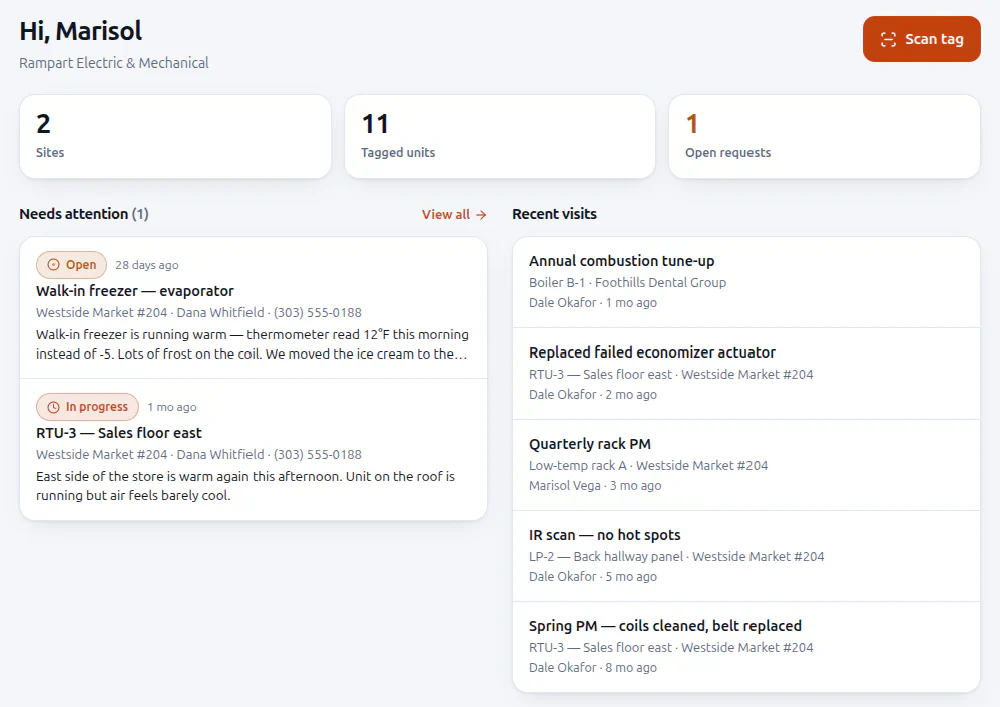
Sign up at portal.protagapp.com: your company name, primary trade, dispatch phone number and your own login. It takes about a minute, and you land straight on your dashboard. Add your logo and brand color under Settings whenever you are ready; that is what your customers see when they scan.
2. Add your first site
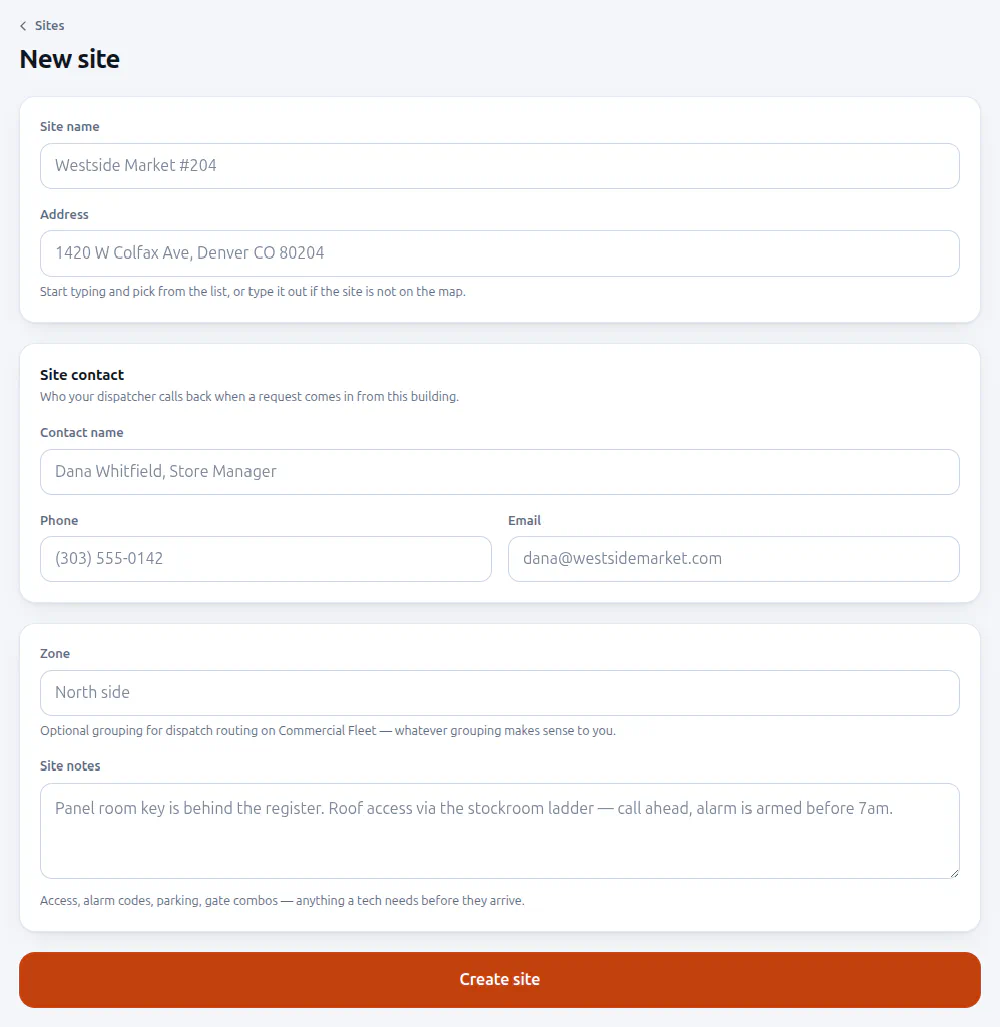
A site is a building you service. Give it a name and address, a contact your dispatcher can call back, and any notes a tech needs before they arrive: keys, alarm codes, roof access.
3. Get tags
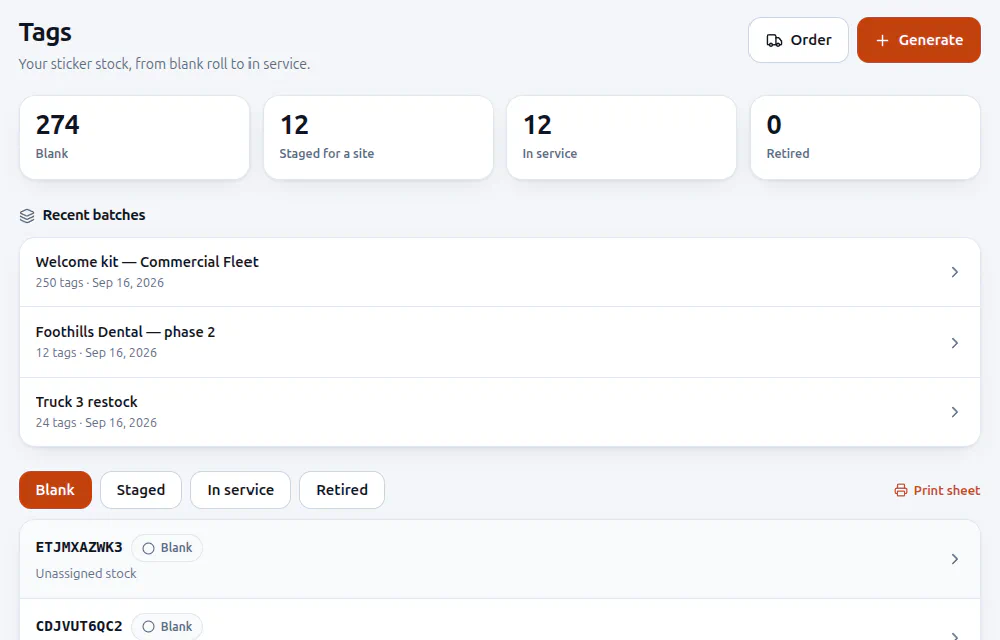
The Tags page is your sticker stock, from blank on the roll to in service. Generate a batch and print it twelve to a US Letter sheet on ordinary paper or two inch square label stock, or order printed weatherproof tags.
4. Stick them on equipment
Panel, RTU, rack, walk-in unit, water heater, whatever is in front of you. Blank tags are the fast path: you do not need to know what a sticker goes on before you print it. Peel one off, put it on the unit, and set it up on the spot.
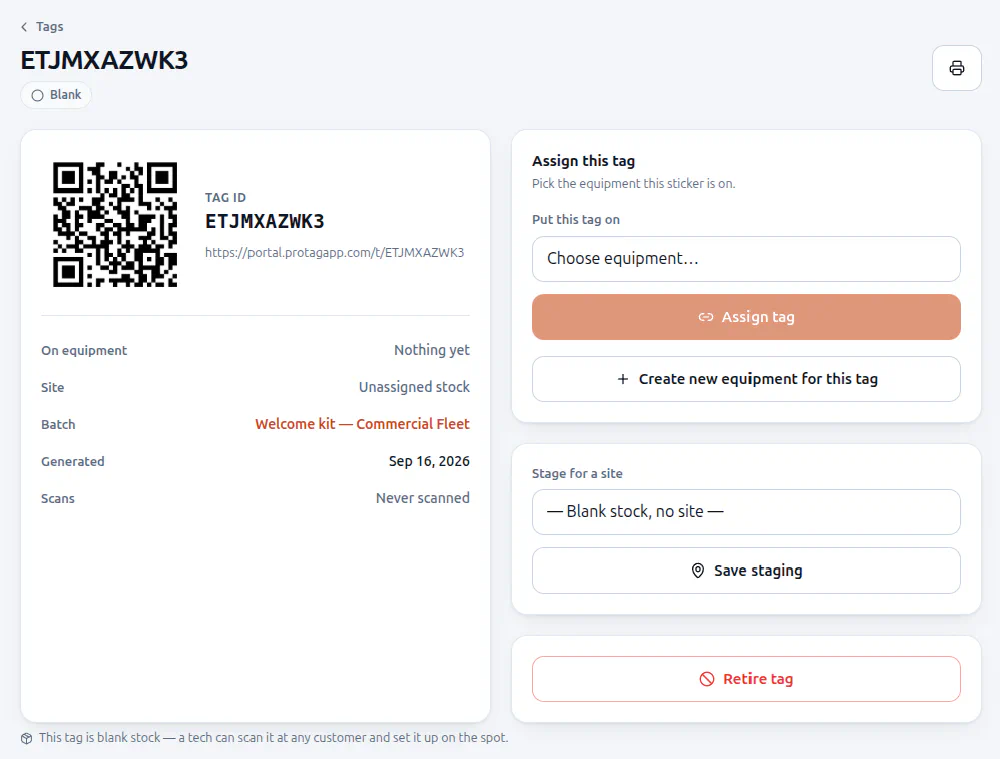
Scan a blank tag and you can attach it to equipment you already have, or create the equipment right there: name, category, make, model and serial. Pick a category and the usual specs for it fill in.
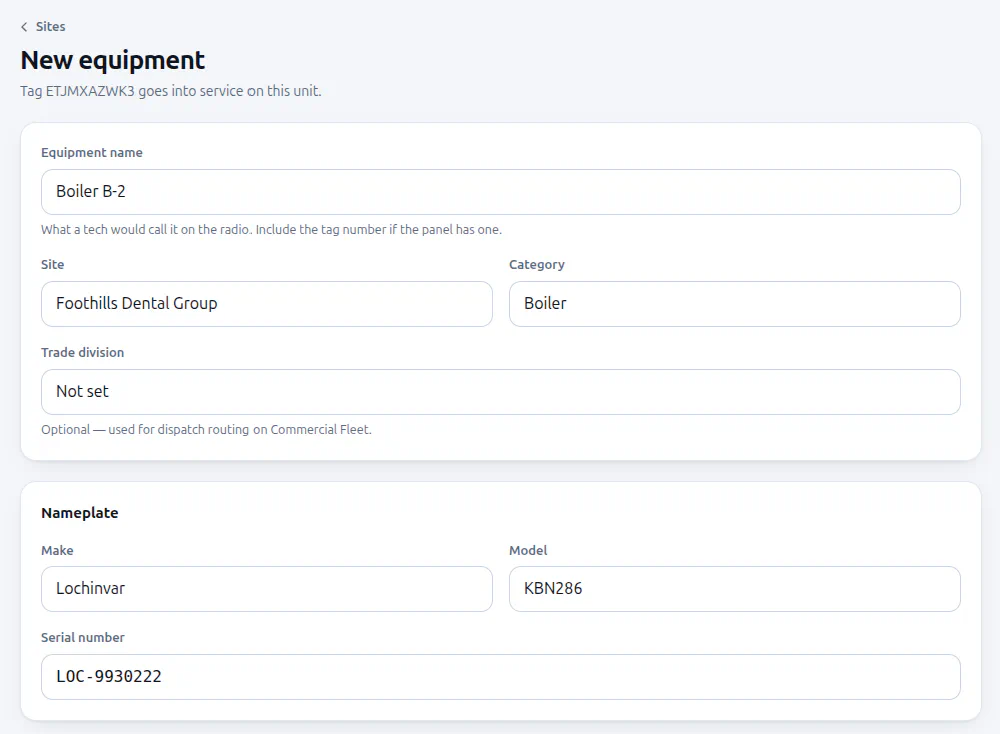
5. Scan to finish the job
Your phone’s camera reads the code straight away, no app to install. Signed in, you get the equipment record: nameplate, specs, service history and what feeds it. Your customer scans the same sticker and gets your branded request page, with the equipment and address already filled in, one tap to call your dispatch number, or a short form with a photo.
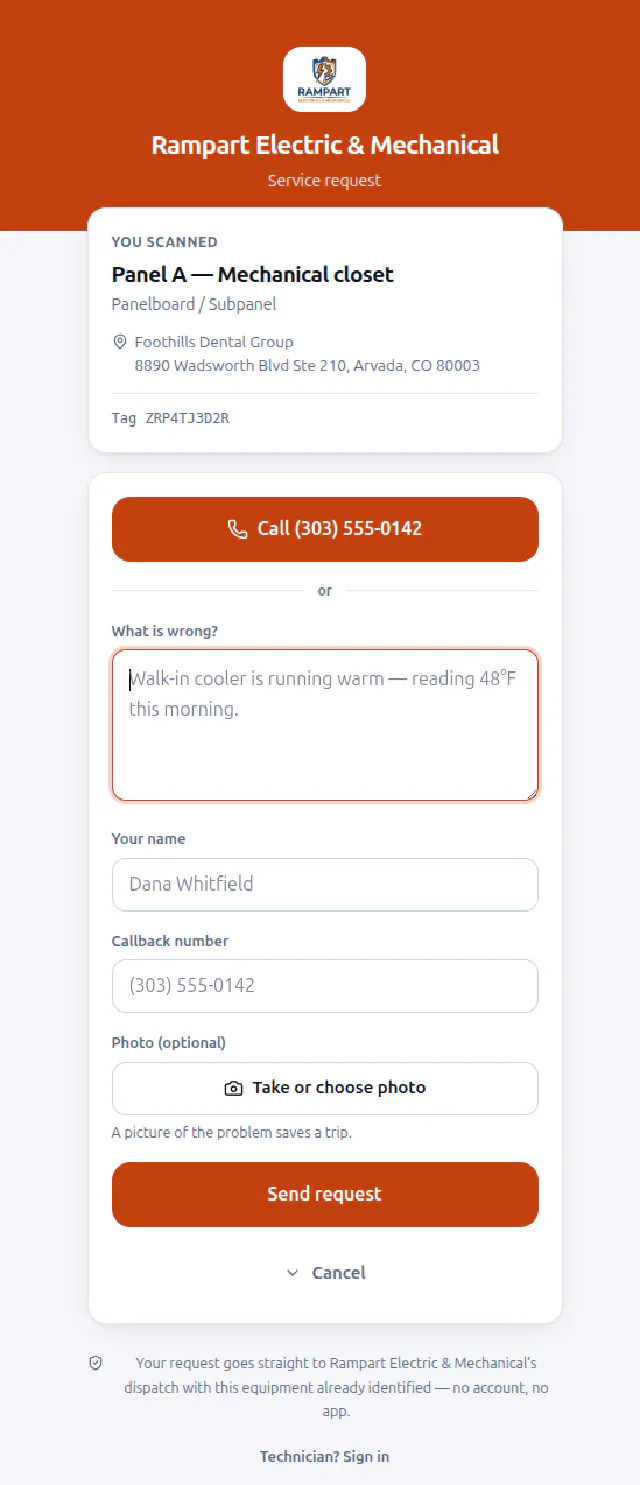
That is the whole loop. Tag it once, and every scan after that, from you or your customer, lands on the right screen.
Tag your first site today
Create your account, print your first tags, and stick one on real equipment in the next ten minutes.